
Justin Frake
Assistant Professor of Strategy, Ross School of Business, University of Michigan
justinfrake.com · jfrake@umich.eduWhy I love agentic coding tools
More time on
- Brainstorming
- Reading
- Framing
- Theory
- Logic
- Insight
- Empirical design
Less time on
- Collecting data
- Merging data
- Writing code
- Writing first drafts and rote prose
- Editing typos and grammar
- Finding and formatting references
- Wrangling minor formatting
What I actually use these tools for (research and teaching)
Research
- All the coding for my papers
- First drafts, then editing
- Literature searches
- Brainstorming and stress-testing designs
- Scraping and API data collection
- Replication packages
- Data-visualization sites (politicsatwork.org)
Teaching
- All slide decks, including this one
- Syllabi and course pages
- Problem sets and exam questions
- Lecture notes, reading guides, and grading rubrics
What I actually use these tools for (editorial work and life)
Editorial and service
- A first pass on papers I review
- Organizing reviewer reports into a decision
- Finding candidate reviewers
- Drafting letters of recommendation
Admin and life
- Making my personal website (justinfrake.com)
- Triaging my inbox
- Building my to-do list and schedule
- A morning brief, emailed to me
- Grocery shopping and recipe planning
- House-management software that keeps my kids doing chores
- A camera that nudges my dog off the couch with a sound only she can hear
I have not written a line of code by hand in over a year. Most of what's on these two slides is not code at all.
The judgment and responsibility are always mine
These tools do not make my decisions. They do the gathering, drafting, and formatting, so I spend my time on the part that is actually mine to do.
The agent prepares
- Reads a submission and lays out the case for and against
- Assembles reviewer reports and flags where they conflict
- Does a first pass and maps the issues in a paper
- Drafts a letter in my voice from the CV and my notes
I decide
- Whether it is a desk reject
- The decision, and every line of the letter
- The actual assessment of the work
- The strength of the signal I send
Everything I submit is mine, even if I did not write the first draft. I read it, and I sign off on it.
Who you are
Live, based on [N] survey responses.
Your day-to-day setup
Live, based on [N] survey responses.
How you code now
Live, based on [N] survey responses.
AI exposure and terminal comfort
Live, based on [N] survey responses.
What you want from these tools
Projects you brought
- Scraping news articles and product reviews
- Cleaning large archival datasets (NLSY, administrative panels)
- Meta-analysis and literature review work
- Multilevel and dyadic team data
- Re-running or restructuring an existing paper's analyses
- Sentiment analysis on reviews
Goals for the four days
- Build a research project end-to-end with the agent
- Complex data analysis without losing researcher oversight
- Level up from ChatGPT + R copy-paste to an agentic workflow
- Specific deliverables: a personal website with chatbot; education research apps; remote-server data access
- Manage AI use for reviewer and editor scrutiny
Agenda for this week
- · Mental model of agentic coding
- · Install & first conversation
- · Context, plan mode, permissions
- · Failure modes & customization
- · Power prompts
- · Regressions, tables, figures
- · Project CLAUDE.md
- · Compiling a paper draft
- · Slash commands & hooks
- · Plugins & skills
- · Sub-agents
- · MCP integrations
- · Bring your own project
- · Apply everything to your research
- · Open Q&A and troubleshooting
Agenda
How we'll work together over the next four days
Format
Conduct
Three goals for the next four days
socialscienceai.com
Agentic coding tools are like very smart (and sometimes weird) RAs
RA you can only text
RA with your files and a computer
Claude Code Demo
Four major agentic coding tools; we will use Claude Code


The differences between Claude, Claude.ai, and Claude Code CLI
Claude.ai
The chat web app. claude.ai in a browser.
You type, the model answers. It cannot see your files, run your code, or save anything to your computer.
Claude Code CLI
An agentic command-line application. Lives in your terminal.
Reads your files. Runs commands. Edits code.
The Claude desktop and mobile apps also sit on this model. This week we work only with Claude Code.
The differences between ChatGPT and Codex CLI
ChatGPT
The chat web app. chatgpt.com in a browser.
You type, the model answers. It cannot see your files, run your code, or save anything to your computer.
Codex CLI
An agentic command-line application. Lives in your terminal.
Reads your files. Runs commands. Edits code.
Codex vs Claude
What an agent does between your prompt and its reply
The agent asks before doing anything irreversible
Three safeguards that hold across Claude Code and Codex CLI. They are the reason this is safe to run on your own laptop.
Before the agent edits a file, runs a shell command, or touches anything outside the current folder, it pauses and asks for approval. You see exactly what it's about to do.
1. Yes 2. No 3. Always allow
If the agent goes the wrong direction mid-task, hit Esc. It stops immediately. You can correct course or start over.
> interrupted. what would you like to do?
Hit Esc Esc to roll back to an earlier point in the conversation.
Backup Keep your work backed up somewhere else: Dropbox, Google Drive, GitHub.
The harness is not the model
The customization stack hangs off the harness, not the model. Codex CLI has analogous primitives with different names.
Five levels of autonomy you give the agent
Context is the single most important concept this week
- Today's defaults: roughly 1M tokens for Claude Code (Opus 4.8), 400K for Codex CLI (GPT-5.5).
- Big, but fills faster than you'd think.
- Attention is a budget shared by every token, and quality drops well before the limit.
One command installs the agent
curl -fsSL https://claude.ai/install.sh | bash
irm https://claude.ai/install.ps1 | iex
claude --version
curl -fsSL https://chatgpt.com/codex/install.sh | sh
powershell -ExecutionPolicy ByPass -c "irm https://chatgpt.com/codex/install.ps1 | iex"
codex --version
socialscienceai.com/help, including the inspect-then-run alternative for locked-down university machines. Windows: Git for Windows is optional but gives Claude Code a Bash shell.
Pick a tier
tiers as of May 28, 2026 · live pricing: claude.com/pricing, openai.com/chatgpt/pricing
How workshop breakouts work
When you get stuck, in this order:
Ask in plain English. Just like you'd ask me in the chat.
See if any of the other people in your group can help you. They may have had the same issue.
Click Ask for Help in your breakout toolbar. I get a popup and join your room.
A quick look at the data you're about to download
All week we use the Chicago Police Department complaint data published by the Invisible Institute. The §2 workshop has you download it; here's what's in it before you do.
One row per complaint. Coverage densest 1990-2018; tails on either side.
final_finding
Day 2's regression builds sustained = (final_finding == "SU").
There's a second file, complaints-accused.csv, that links complaints to officers. We add it on Day 2 when we move to the merge.
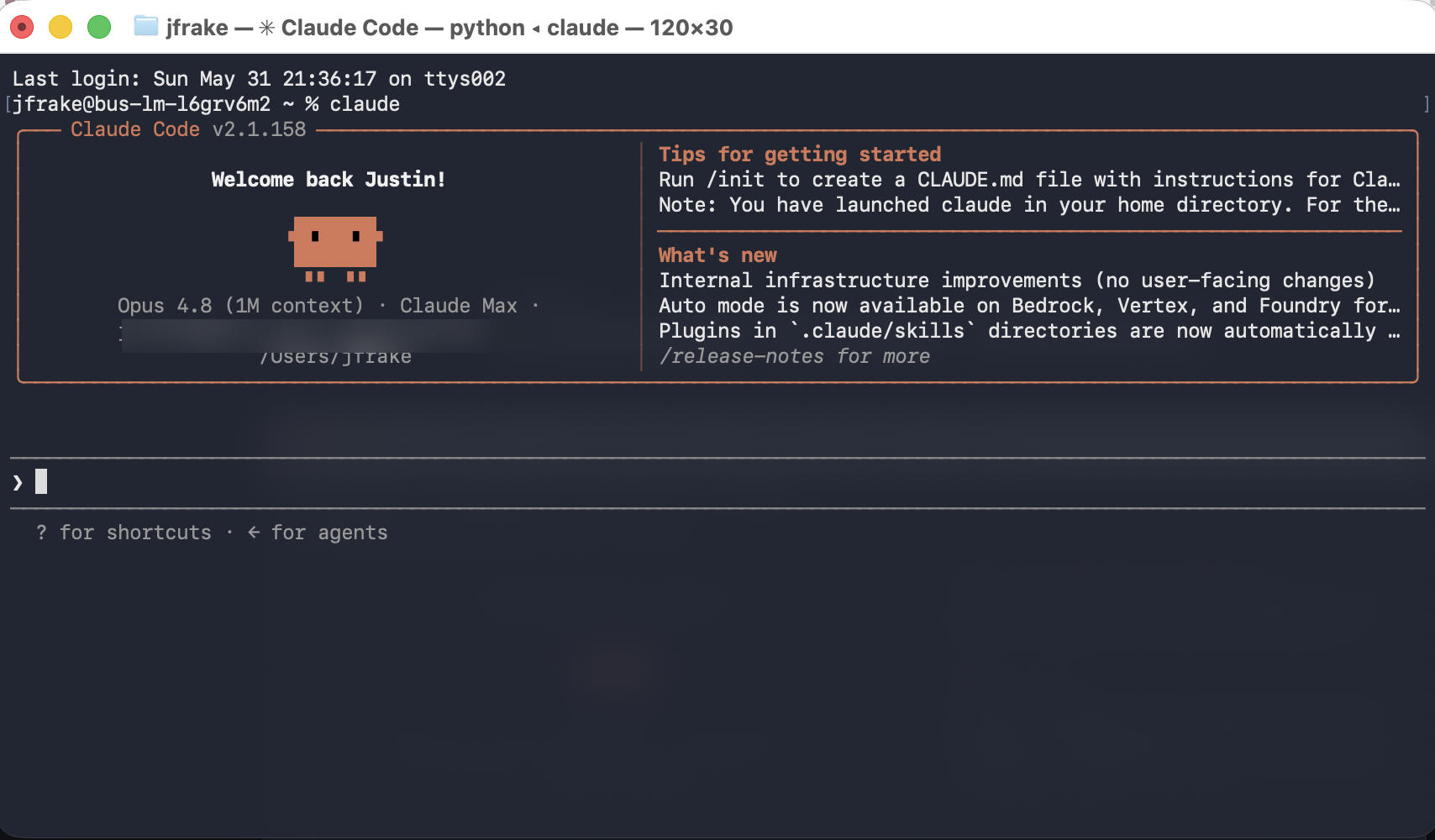
Set up Claude Code and explore the data
Open the terminal, launch the agent, download the data, and ask it what it is.
Debrief & Questions
- What worked?
- Where did you get stuck?
- What surprised you?
Both tools work in every interface
(CLI)
app
VS Code, JetBrains
browser
Some workflows (SSH to a remote machine, automating an agent over many files in a script) only run in the terminal. Switch to a graphical option if you prefer.
R and Python work better with coding agents than Stata or SAS
Plays well with coding agents.
Works, but less smoothly.
Compile your papers with Quarto or LaTeX, your choice
Both build a finished paper from a plain-text source the agent can read, diff, and version. Day 2 gives you two tracks: use Quarto if you must use Word to work with co-authors. If co-authors are okay with it, then LaTeX to PDF is what I use.
For co-authors who edit in Word.
paper.qmd, a plain-text source mixing Markdown prose and code. Quarto runs the code, then renders a .docx through Pandoc; apply house styles with a reference template. The agent edits the source and re-renders rather than patching the binary file.
What I use. Only if co-authors are on board.
paper.tex, and LaTeX compiles it to PDF. Tables, figures, and citations land where the code puts them. The agent reads every intermediate file and iterates on its own.
Pick the track that matches where your document is going. The Day 2 exercise has you build the draft in whichever one you choose.
Two non-agentic tools worth installing this week
★ marks what I use.
/voice) and Codex now have built-in dictation, still rolling out.Install R and Python
Have the agent install R, Python, Quarto, TinyTeX (optional), and the data-analysis packages.
Debrief & Questions
- What worked?
- Where did you get stuck?
- What surprised you?
Everything the agent has seen this session is one long document
Limit: 1M tokens for Claude Code (Opus 4.8); 400K for Codex CLI (GPT-5.5). A token is roughly three-quarters of a word. Fills faster than you'd think.
See what's in the context window right now
The stack on the previous slide is abstract. The harness will show you the actual numbers. In Claude Code, type /context for a per-category breakdown. In Codex CLI, type /status for the equivalent summary.
Illustrative numbers.
Context comes from three places. The agent can reach two of them.
Drop everything the agent might need into your project folder
CLAUDE.md / AGENTS.md is specialHave the agent interview you before you ask for something hard
Q1. How long is the talk?
A. 20 minutes.
Q2. Who is the audience?
A. Business-school faculty.
Q3. What do you want them to remember?
A. My main result is robust to alternative IVs.
When context fills, the agent summarizes older turns into a memory block
Auto-compact works fine for most research workflows when state is in files. Manual /compact gives you control over when and what to keep.
What is Context Rot?
As context fills, the agent has more to keep track of and starts losing the thread. The signal-to-noise ratio drops.
After many turns in a heavy session, performance is noticeably worse than at the start.
- The agent misremembers earlier decisions
- Forgets constraints you set early in the session
- Goes in circles on a problem it would solve fresh
- Uses old patterns after you've corrected it
As your session grows, accuracy on the same task drops.
Pattern after Hong, Troynikov & Huber (Chroma Research, 2025); independently confirmed in Du et al. (EMNLP Findings, 2025). Curve illustrative.
Three habits that keep context useful
Have the agent write progress, plans, and decisions to .md files in your project. Files persist across sessions; conversation context doesn't.
Run /context (Claude Code) or /status (Codex CLI) periodically. When free space drops below about 30% (roughly the zone where rot starts to bite), start fresh or compact. The signal is the budget, not a fixed turn count.
Type /compact before context fills, with a hint about what to keep. Better than waiting for auto-compact to lose detail.
three rules via Paul Goldsmith-Pinkham
Plan mode is where you and the agent agree on the approach before any code runs.
Before the agent touches a file, it states what it intends to do. You read the steps, push back on the wrong ones, refine. By the time anything executes, the two of you have agreed on the approach.
The agent reads your prompt and acts. It picks variable names, file paths, methods, and sequencing on its own.
By the time you see what it did, you are unwinding decisions that were never yours.
The agent proposes the steps it would take, in order, before any of them run.
You approve, reject, or amend. The assumptions become visible and editable before they execute.
A useful rhythm for non-trivial work: Plan, Execute, Clear
Naming the rhythm helps you notice which phase you're in mid-task. Use it as a default for non-trivial work. Skip Plan when the task is small.
The agent proposes what it would do, before it does anything. You read the plan, approve, reject, or amend.
Shift+Tab+Tab to enter plan mode (or skip it for your own planning ritual)The agent runs the plan: edits files, runs commands, asks permission as needed. You watch, and intervene if it drifts.
ESC to interruptWhen context fills, /compact to keep going with key state preserved. When the task is done, /clear to start fresh. Files persist; conversation context doesn't.
/compact or /clearframing via Steve Pocock
What plan mode looks like in your terminal
Stylized example. Live wording may differ slightly.
The agent asks before doing anything that changes your system
Rscript, git, rm. (A shell is the program that runs your terminal commands.)rm or git reset.
By default the agent asks before almost every action. Use /permissions to pre-approve commands as you build trust.
What a permission prompt looks like in your terminal
A terminal is the text-based interface to your computer. The agent prints prompts like this one when it needs your approval.
Stylized example. Live wording may differ slightly.
Rscript *) for this project. 3 declines. Esc cancels.
Permission layers, least to most permissive.
The annoyance of repeated prompts is a real cost. The right fix is to remove the prompts you do not need, not to remove all the gates.
/rewind.
~/.claude/settings.json. Needs Opus 4.6+ or Sonnet 4.6. Codex version: --ask-for-approval (Auto by default).
/rewind). As of recent versions this flag also bypasses writes it used to protect: .git/, .claude/, .vscode/, and shell config files (only catastrophic deletes still prompt), so the blast radius now includes your git history and dotfiles. Remaining risk: a webpage or document the agent reads could try to trick it into running something destructive. This is prompt injection; we come back to it in the next section. Codex version: --yolo.
Per session: Shift+Tab cycles modes in Claude Code; Codex CLI uses /permissions, which offers three modes: Auto (default), Read-only, and Full Access.
Visualize the data
Have the agent make an annual time series and a density map of the complaints data.
Debrief & Questions
- What worked?
- Where did you get stuck?
- What surprised you?
Plain language goes to the model. Slash commands stop at the harness.
Three things only slash commands can do: clear context, show your cost, edit permissions.
The most important slash commands in Claude Code
/rewind
/clear
/resume./compact
/resume
/usage
/cost is an alias./model
- Opus: hard reasoning
- Sonnet: fast iteration
/permissions
/init
CLAUDE.md./exit
+ advanced (later this week): /loop · /rc
These are Claude Code commands. Codex CLI has its own set; many overlap, but it has no /rewind (closest: /fork).
Three newer commands worth knowing
All three landed in May 2026. The tools change weekly, so treat this as a snapshot, not a fixed feature set.
/effort
/model. Turn it up (/effort xhigh) for a hard identification or debugging problem; turn it down to conserve rate limits on routine edits./goal
/workflows
preview
/goal is distinct from /loop, which repeats on a time interval rather than working toward a condition.
Two primary places to store memories/rules
Every session, the agent reads both files and prepends them to its context. The global file follows you across every project. The project file lives in the folder and only applies there.
What goes here. Who you are; which language and packages you use everywhere; the writing voice you want; reproducibility defaults.
Examples: “Primary languages are R and Python.” “Regressions in fixest.” “Cluster SE at the unit of treatment.”
What goes here. The research question; data paths and codebook; the join key and unit of analysis; the project-specific clustering level.
Examples: “Cluster SE at beat.” “Inner join on cr_id; report the share dropped.” “Outcome is sustained.”
Both files are concatenated into the system prompt at session start. Keep universal rules in the global file. Keep facts that only apply to one paper in the project file.
Write your global CLAUDE.md
Have the agent interview you, then write a global CLAUDE.md from the conversation.
Debrief & Questions
- What worked?
- Where did you get stuck?
- What surprised you?
Does Anthropic train on your Claude Code data?
Sources: privacy.claude.com · platform.claude.com · code.claude.com (ZDR)
Does OpenAI train on your Codex CLI data?
Sources: developers.openai.com (API) · developers.openai.com (Codex enterprise) · help.openai.com (ChatGPT plans)
Can you upload copyrighted articles to Claude Code?
Sources: Sag, “Fairness and Fair Use in Generative AI” · SPARC TDM tracker · anthropic.com/legal/commercial-terms
I’m not a lawyer and this is not legal advice. Check with your library or counsel for your specific situation.
You are the P.I. The agent is the R.A.
AI coding assistants can produce code, run scripts, and draft text. They do not have the contextual judgment to make the choices that determine whether an analysis is defensible. Six responsibilities remain with the researcher.
| Responsibility | What it covers |
|---|---|
| Taste | The agent doesn't know your field. Journal-specific style conventions, current methodological debates, and niche or recent techniques are underrepresented in its training. |
| Theoretical framing | What conversation in your field the paper joins, what counts as a contribution, which precedent to cite. The agent can suggest framings; it can't tell you what your field will register as novel. |
| Data quality | Whether the data actually answers the question. The agent will run regressions on whatever variables you give it without flagging that they may not measure what you think they measure. |
| Methodological choices | Sample construction, estimator, identification strategy, and standard error specification. |
| Verification | Direct inspection of the analytic output: cleaned data, row counts, regression tables, figures. |
| Stopping rules | When the analysis is done versus when you're p-hacking. The agent will keep running specifications as long as you ask for more. |
Sycophancy and leading prompts
The agent tends to comply with user direction. Prompts that signal a desired result, or that request unmotivated changes to the sample or specification, produce output that conforms to those expectations rather than to the structure of the data.
| Leading | Neutral |
|---|---|
| “This effect should be significant. Try a few specs.” | “Run the pre-registered spec. Report the coefficient and SE.” |
| “Add controls until the coefficient is significant.” | “Estimate the model with the pre-specified control set. Report results with and without controls.” |
Three failure modes to watch for
| Failure mode | What happens | Mitigation |
|---|---|---|
| Destructive actions | The agent runs a command that deletes or overwrites files you did not intend to lose. | Use version control. Back up raw data outside the project. Commit changes often. |
| Changes that spread | A request to change one file may quietly modify others. | Name the file you want changed. Review the diff before approving. |
| Gaming the checks | Asked to fix a failing check (e.g., "N should be 154,525"), the agent may weaken or delete the check itself rather than figure out why the number is off. | Write your own data-integrity checks. Review any agent change to them before approving. |
Prompt injection: the risk that comes from outside
The other failure modes come from the agent or from you. This one comes from a third party. The agent treats text it reads as if it were your instructions, so a hidden line in an email, a PDF, or a web page can redirect it.
| What it is | Detail |
|---|---|
| Where you are exposed | Anything that feeds the agent text you did not write: an email it triages, a paper you are reviewing, a scraped web page, a dataset's README, the output of an external tool. |
| What it can cause | Leaking data the agent can see, running a shell command, or sending an email or making an edit you never asked for. The damage scales with the agent's reach: file access, network, and send permissions. |
| How to limit it | Do not run full autonomy (Layer 4) on a session that is reading strangers' text. Keep approvals on for actions that reach outside: shell, send, network. Treat anything read from outside as data, not commands. Keep raw data backed up and work under version control so any edit is reversible. |